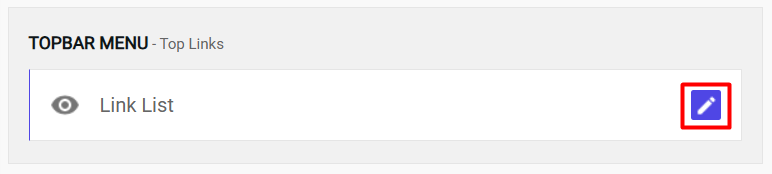
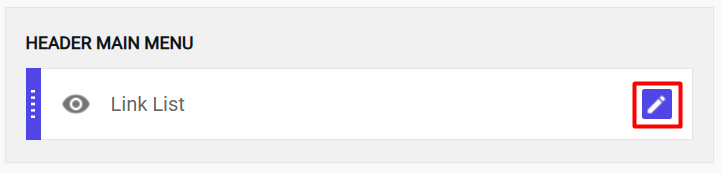
Access your Blogger dashboard and locate the Topbar menu widget in the Layout section. Click on "Edit Icon" to configure your logo settings.
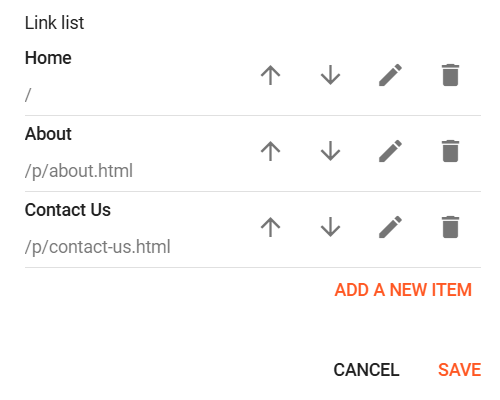
📝 Example Configuration:
📝 Notes
The / slash means the homepage of your blog.
/p/your-page.html is the format Blogger uses for static pages.
You can add as many items as you like (e.g., Blog, Services, FAQ).
You can reorder items by arrow up or down them in the LinkList gadget.
Note: You can use the same menu links in the footer menu as those in the topbar menu.
Topbar Social links
2
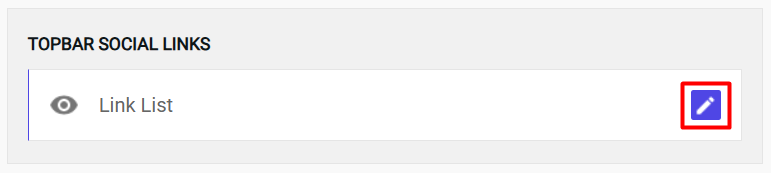
Navigate to Layout → Topbar Social links → Edit Icon
Access your Blogger dashboard and locate the Topbar Social links widget in the Layout section. Click on "Edit Icon" to configure your logo settings.
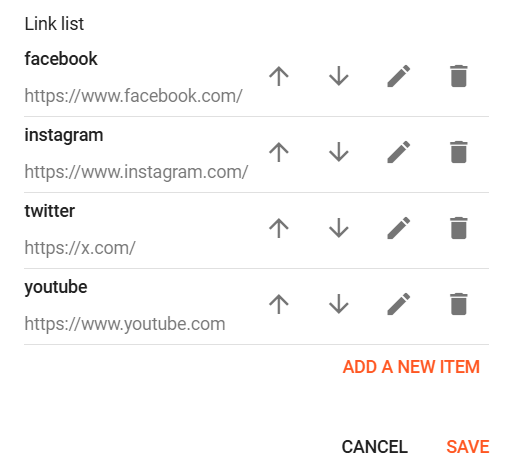
📝 Example Configuration:
Note: You can use the same menu links in the footer social links as those in the topbar social links.
Header Logo setup
3
Navigate to Layout → Header Logo Widget → Edit Icon
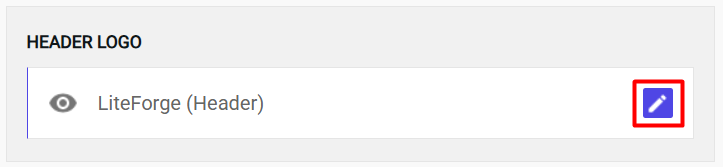
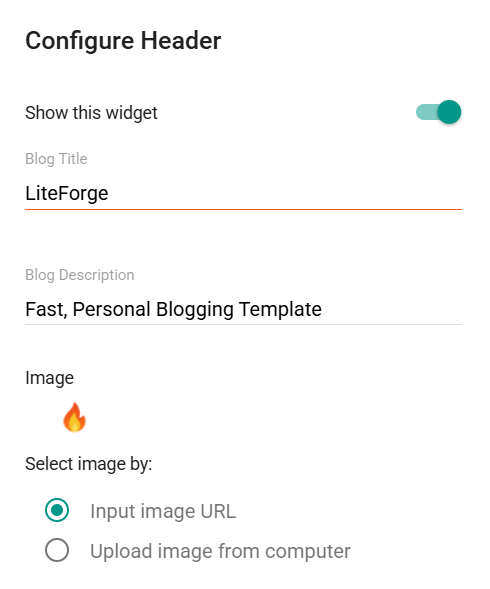
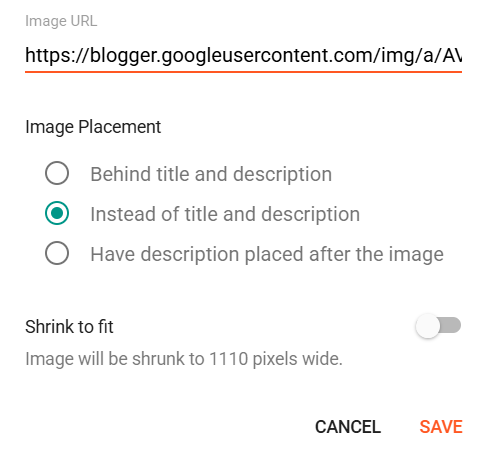
Access your Blogger dashboard and locate the Header Logo widget in the Layout section. Click on "Edit Icon" to configure your logo settings.
📝 Example Configuration:
Pro Tip: Upload your logo image first to Blogger's media library, then copy the image URL for use in the widget configuration. This ensures faster loading and better reliability.
Header Menu Setup
4
Configure Navigation Menu in Layout → Header Menu Widget
Multi-level Menu Support
Set up your navigation menu with support for multi-level dropdowns and custom styling.
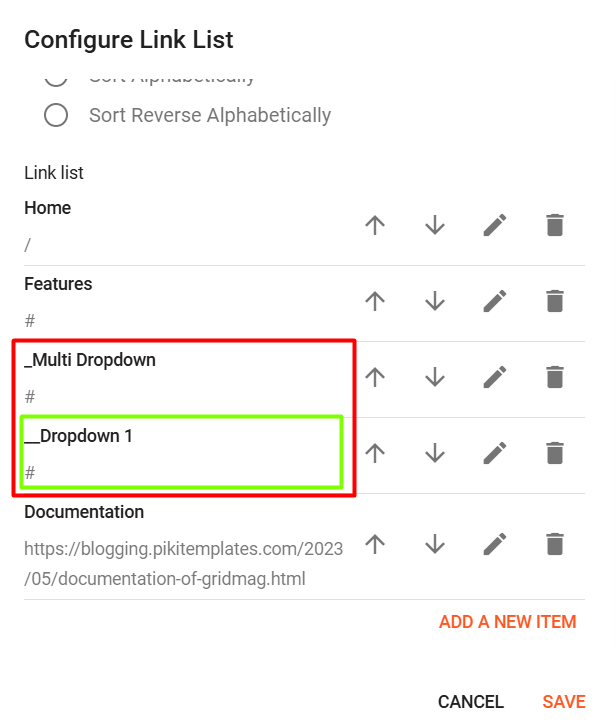
🎯 Menu Structure Examples:
Main Menu: Features
No underscores needed
Sub Menu: _Multi Dropdown
Add 1 underscore
Sub-Sub Menu: __Dropdown 1
Add 2 underscores
Important: The menu hierarchy is created using underscores. Make sure to maintain the proper order: Main menu items first, then sub-menu items with one underscore, followed by sub-sub-menu items with two underscores.
Mega Menu Configuration
5
Create Dynamic Mega Menu with Post Categories
Dynamic Content
LiteForge mega menu can display recent posts, random posts, or posts from specific categories automatically.
🔹 Mega Menu Shortcode
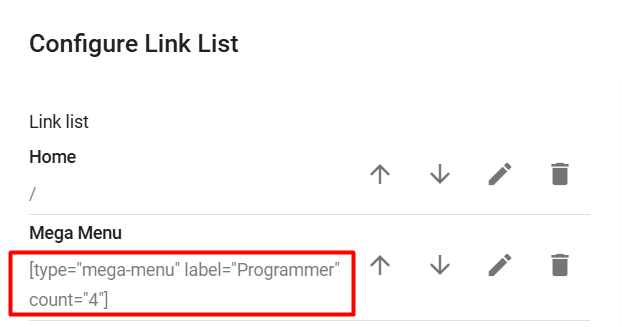
Use this shortcode to display a mega menu that automatically shows recent posts or posts from a specific category.
[type="mega-menu" label="News" count="4"]
📋 Understanding Blogger Labels:
What are Labels? In Blogger, labels are like categories or tags that help organize your posts. You can assign multiple labels to each post, and the mega menu can display posts from any specific label.
⚙️ Mega Menu Configuration:
Important Note: Mega Menu cannot be used as a Sub Menu Level 2. It works only as a main menu item or first-level sub-menu. Plan your menu structure accordingly.
📝 Notes for Mega Menu Shortcode
type="mega-menu" – Tells the system to render a mega menu block.
label="News" – Loads posts that have the label "News" (this is not the menu tab title).
Label is case-sensitive – For example, label="news" and label="News" are treated as different labels.
Label is optional – If the label is not set, the system will automatically display the most recent posts.
count="4" (optional) – Limits the number of posts displayed. If omitted, the default is 4.
Use [type="mega-menu" label="News"] to display the latest 4 posts with the 'News' label in a mega menu block.
Use [type="mega-menu"] to display the latest 4 recent posts when no label is specified.
About Section
6
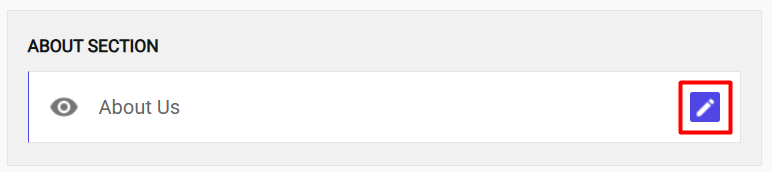
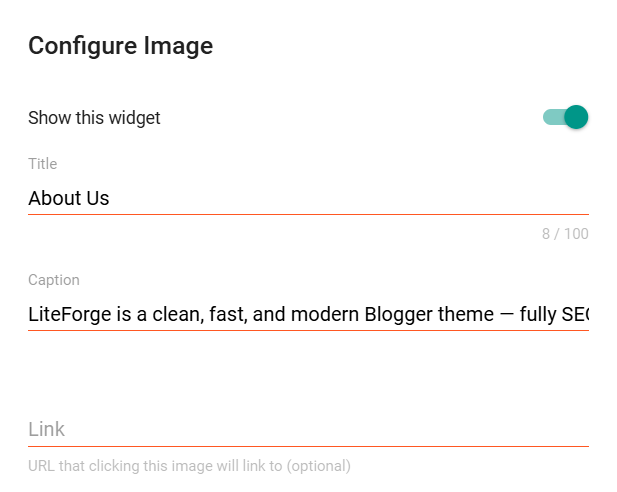
Navigate to Layout → About Section → Edit Icon
Access your Blogger dashboard and locate the about section widget in the Layout section. Click on "Edit Icon" to configure your logo settings.