Installation Guide
Installing a Blogger template is a straightforward process. Follow the steps below to install your template correctly.
Prerequisites
Before you begin the installation process, make sure you have the following:
- A Blogger account
- The template file (.xml) downloaded to your computer
- A backup of your current blog (recommended)
Backing Up Your Blog
Before installing a new template, it's important to backup your current blog. Here's how to do it:
- Log in to your Blogger account
- Go to your blog's dashboard
- Click on "Settings" in the left sidebar
- Click on "Back up content" under the "Manage blog" section
- Click "Save to your computer" to download the backup file
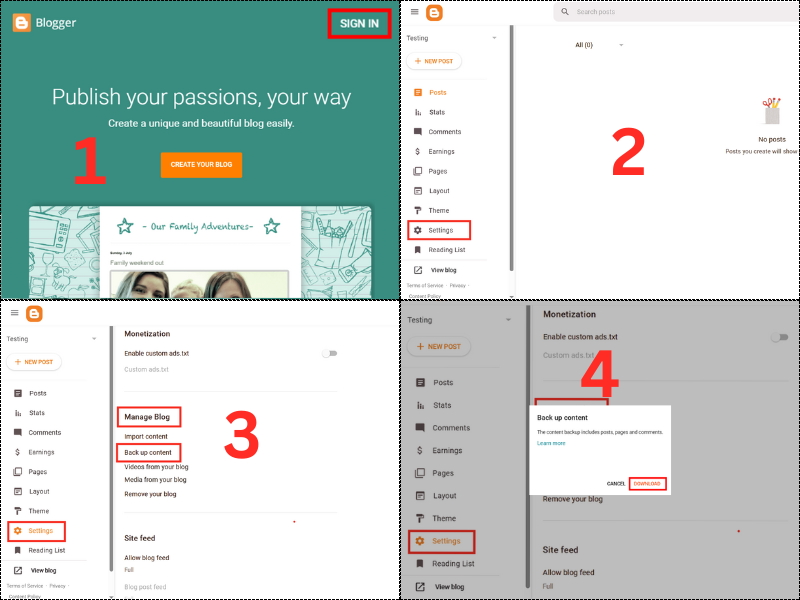
Screenshot: Backing up your Blogger content
Installation Steps
Now that you've backed up your blog, you can proceed with installing the new template. Follow these steps:
Access the Theme Section
Log in to your Blogger account and go to your blog's dashboard. Click on "Theme" in the left sidebar.
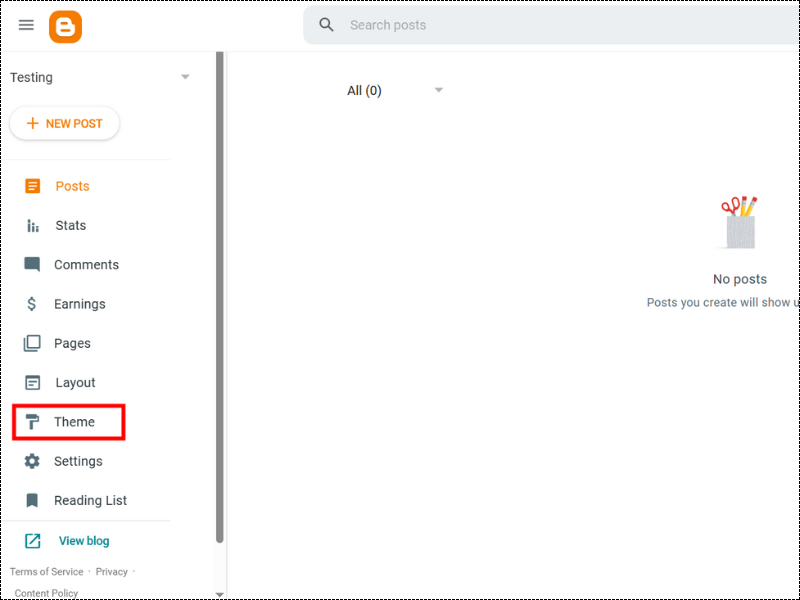
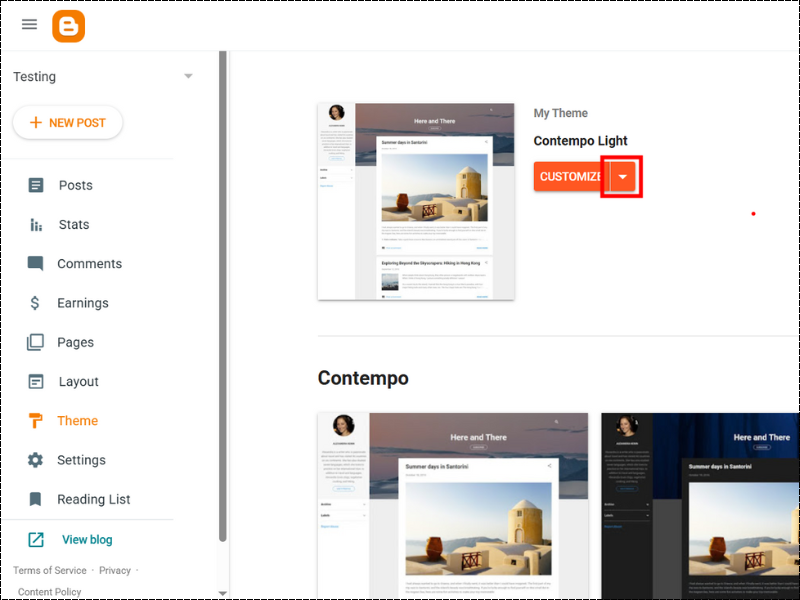
Access the Theme Options
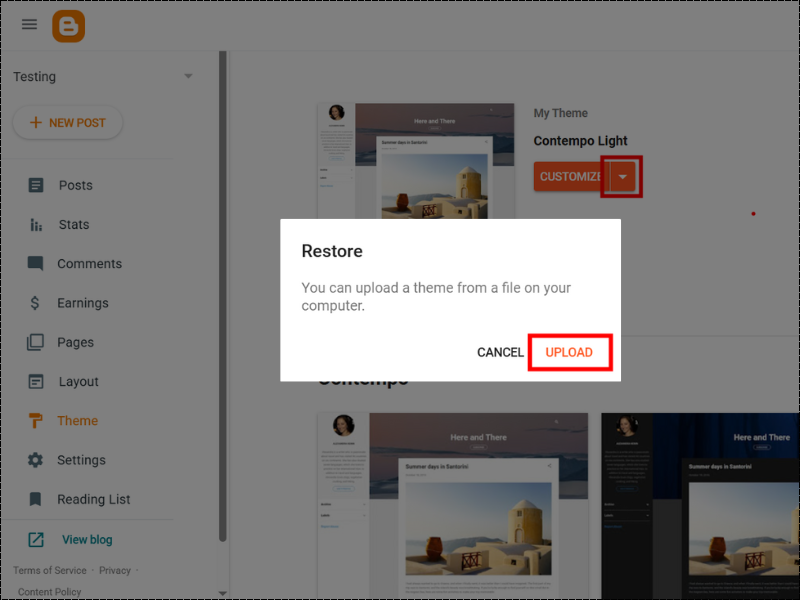
Click on the dropdown menu (three dots) next to the "Customize" button.
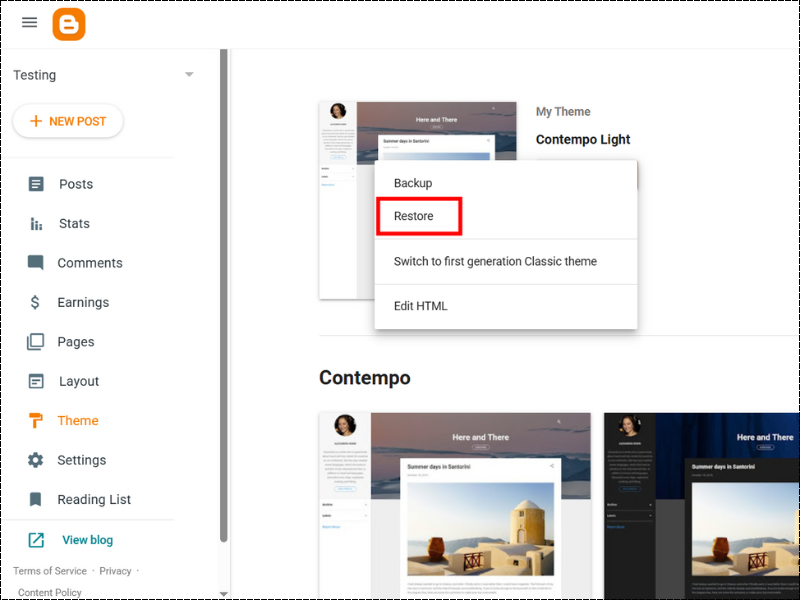
Restore/Upload Template
Select "Restore" from the dropdown menu. This will open a file upload dialog.
Upload the Template File
Click "Choose File" and select the .xml template file you downloaded. Then click "Upload".
Confirm Installation
Once you click 'Choose File' and select your template, it will be uploaded automatically.
Verify Installation
After the template is installed, visit your blog to make sure everything looks correct. You may need to customize some settings to match your preferences.
Go to Basic SettingsTroubleshooting
If you encounter any issues during the installation process, here are some common problems and their solutions:
This error occurs when the template file is corrupted or not in the correct format. Try downloading the template file again from our website.
Make sure you're uploading an .xml file and not a zip file or any other format.
This is a common issue when installing a new template. You'll need to reconfigure your widgets after installing the template.
Go to "Layout" in your Blogger dashboard and add the widgets you need.
The demo version of the template includes sample content and images that are not included in the template file.
You'll need to customize the template with your own content, images, and settings to make it look like the demo.
Check the Basic Settings guides for more information.
Next Steps
Now that your blog is up and running, you may want to explore some advanced features and customization options:
- Basic Setting - Learn how to enhance your posts using important settings.
- SEO Optimization - Improve your blog’s visibility in search engine results.